

Google Business Profile in Norway: how to get access to a profile that already exists
If your business in Norway already appears on Google, do not create a new profile. Find it on Google Maps. If nobody has verified it, select "Claim this business" and verify. If someone else manages it, select "Request Access"; the owner has three days to reply. Claiming a business on Google costs nothing.
You may know the tool as Google My Business. The help pages now call it Google Business Profile, and that is the profile this guide is about. Button names and time limits come from Google's English help pages, read on 9 November 2026.
Typical situations for foreign owners
You have bought a café, a cleaning company or a salon in Norway, or you have taken over the management of one. The profile was set up by someone before you. In practice you end up in one of these cases:
- The previous owner still controls the profile, perhaps from a private Gmail account.
- A web or marketing agency set it up and you do not know the login.
- The profile was never verified. The business is on the map, but nobody has claimed it.
- You manage it already, but from an account you rarely use.
Each case has its own route. What does not work is creating a second profile: only one profile is allowed per business, and duplicates do not show on Search or Maps.
Check your own accounts first
The profile only appears for the Google Account it is linked to. Sign in to that account, then search Google for "my business", or tap "Business" at the bottom right of the Google Maps app. If you manage several businesses, tap the down arrow at the top and pick the right one.
If nothing shows, try the other accounts your business has used: the shared company mailbox, the managing director's account, the account used for the website. If you have forgotten the username or password of the account that verified the business, use Google's Accounts troubleshooter. If that fails too, use the ownership request below.
Claiming an unverified profile
- Open Google Maps in a browser and search for the business name and town.
- Select "Claim this business", then "Manage now".
- Choose a verification method and follow the steps on screen.
In the app, open the business, tap "About", then "Claim this business" and "Manage now". If the wrong business appears, select "I own or manage another business".
The verification method is chosen for you and cannot be changed. Our guide to creating a Google Business Profile in Norway lists the methods. Expect the review to take up to five business days, keep the code to yourself, and leave the name, address and category alone while you wait for a postcard.
If you see neither "Claim this business" nor "Own this business", you might already be the owner. Check your other accounts before you go further.
Requesting access from the current owner
A verified profile cannot be taken over directly. You ask for it.
- Go to business.google.com/add.
- Enter the business name and address and pick the business from the list.
- You see "Someone else may manage this Business Profile". Select "Request Access".
- Fill out the form and select "Submit".
You get a confirmation email, and the owner gets a notice. You can follow the status in your Business Profile or through the link in the email. Then:
- Approved: you get an email and can manage the profile.
- Denied: you get an email. You can still suggest an edit or appeal the decision.
- No reply after 3 days: open the confirmation email, select "View request", then "Verify", and follow the verification steps. You can also look for a "Claim" or "Verify" button in the profile. The option is not always available.
Service-area businesses without a shop or office, such as a plumber or a cleaner who works at the customer's address, follow a different route. Contact support at support.google.com/business/gethelp, enter "Transfer ownership of listing" in the "Tell us what we can help with" field and pick that option as the issue.
Owners and managers
Once you are in, roles decide what you can do. An owner has full control, including adding and removing people and removing the profile. A profile can have several owners but only one primary owner. A manager can edit almost everything, from opening hours to replies to reviews, but cannot add or remove users or remove the profile.
To add someone: go to the profile, select "More", "Business Profile settings" and "People and access", then "Add" at the top left. Enter the email address, choose "Owner" or "Manager" under "Access", and select "Invite".
If you hire an agency, make it a manager and keep the ownership in an account the business controls.
New owners and managers wait 7 days before they can delete or restore a profile, remove other users or transfer primary ownership. Plan a handover around that week.
Buying or selling a business in Norway
When a business is sold, the help pages advise transferring primary ownership to the new owner, so that business info such as reviews is kept. The order matters:
- The seller adds the buyer as owner or manager. The profile needs at least one other owner or manager before primary ownership can move.
- After 7 days, the seller opens "People and access", selects the buyer, selects "Edit" next to "Access", chooses "Primary owner" and selects "Save".
- After that, the seller can leave with "Stop managing" and "Confirm". A primary owner cannot remove themselves before the transfer.
Say you buy a hair salon in Bergen, one of the places listed under Hair salons in Bergen in our directory. Put the profile handover into the sale agreement, with a date. Norwegian registration does not do it for you: a new owner in the Brønnøysund Register Centre, the organisation number and BankID have nothing to do with access to the Google profile. Access follows the Google Account, not the company.
When a staff member or agency leaves, an owner selects them under "People and access" and then "Remove person". Their earlier replies and posts stay on the profile.
If the business changed its name or address with the sale, update the profile once you have access. If it still does not show, go through our checklist Why don't customers find your business on the map? Five things we check first. If the business is not in NorgeGuide yet, use Add your organisation. The listing is free, and we contact you after you send the form.
Frequently asked questions
Sign in to the Google Account linked to the profile and search Google for "my business", or tap "Business" in the Google Maps app.
No. The ownership process runs through your Google Account. The help pages do not ask for BankID or a Norwegian organisation number.
Not automatically. Ask the previous owner to transfer primary ownership, or use "Request Access". The help pages describe no route based on proof of the sale.
A manager can edit nearly everything but cannot add or remove users or remove the profile. Only owners can.
New owners and managers must wait 7 days, and only the current primary owner can transfer it. The profile also needs at least one other owner or manager.
Yes, if primary ownership is transferred within the existing profile. A new profile would be a duplicate and would start without them.
If you get stuck
You can check the name, address, opening hours and who has access yourself. If verification or ownership stops you, Madloba Consult can help you work out the next step:
Google Maps SEO for local business
Sources
Sources were read on 9 November 2026.
- Google Business Profile Help: Add or claim your Business Profile
- Google Business Profile Help: Request ownership of a Business Profile
- Google Business Profile Help: Manage your Business Profile owners & managers
- Google Business Profile Help: Transfer primary ownership of a Business Profile
- Google Business Profile Help: Find your business on Google
- Google Business Profile Help: Verify your business on Google
- Google Business Profile Help: Resolve duplicate profiles & ownership issues
Last checked: 9 November 2026.
Written by: NorgeGuide editorial team (business guides). Fact-checked against Google's help pages on 9 November 2026.
Read also
How to add your business to Google Maps in Norway
Create a free Google Business Profile for a business in Norway: the steps, the verification methods and what you do not need, such as BankID.
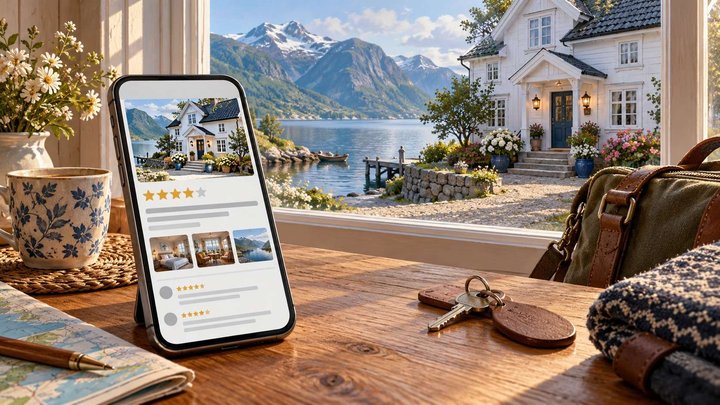
The guest picks where to stay before opening your website
Guests decide on the map before they open your website. Name, address, your own photos, parking, check-in and replies to reviews make the difference.
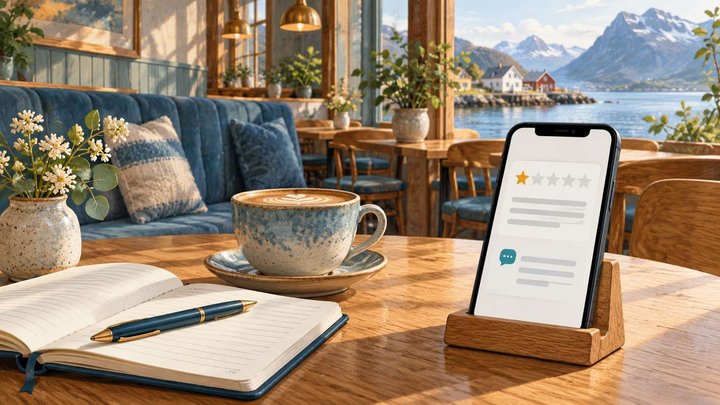
What do you do about a bad review? What can be removed, and what cannot
What to do about a bad Google review in Norway: what breaks the rules, how to report and reply, and how to ask for honest reviews.
Why don't customers find your business on the map? Five things we check first
Five things we check first when customers can’t find a business on the map: verification and ownership, name and address, category, photos and hours, reviews.
0 comments
Log in to leave a comment