

How to add your business to Google Maps in Norway
You do not need a Norwegian agency, BankID or a paid service to put your business on Google Maps. You create a free Google Business Profile at business.google.com/add with any Google account, enter your name, category and address, and verify that the business is yours. The verification review can take up to five business days, on rare occasions longer.
Button names, time limits and rules in this guide come from Google's own help pages, checked on 9 November 2026.
Who this guide is for
This guide is written for people who run a business in Norway and prefer to work in English: a café owner in Oslo, a cleaner in Bergen, a physiotherapist who has just opened a practice in Stavanger. The steps are the same as for Norwegian owners. What differs is the paperwork you may expect and do not need, and a few local habits worth knowing.
Can your business have a profile?
A profile is for businesses that meet customers in person, either at a location or at the customer's address. A shop, a salon and a plumber who drives to clients all qualify. A business which operates only online does not.
Google's help pages are available in English.
Before you create anything: search for yourself
Open Google Maps and search for your business name and town. Google sometimes has a listing nobody at your company created.
- Nothing comes up. Create a new profile with the steps below.
- A listing exists and nobody has verified it. Select "Claim this business", then "Manage now".
- A listing exists and belongs to someone else. Go to business.google.com/add, choose the business from the list and select "Request Access". The current owner gets an email and has three days to respond. The full process is in Google Business Profile in Norway: how to get access to a profile that already exists.
Google allows one profile per business. A second profile for the same business is treated as a duplicate and is not shown, so it pays to check first. This matters if you bought an existing business: ask for access to the previous owner's profile instead of creating a second one.
Create the profile
Your screens may differ slightly from the description here.
- Sign in to the Google account that should own the profile. Use an account the company controls.
- Go to business.google.com/add.
- Click "Add your business to Google".
- Enter the business name exactly as it appears on your sign. Do not add a translation, a slogan or the town.
- Choose the category that says what the business is. Do not pick a category for every product or service.
- Enter the address. Norwegian addresses are written street first, then number, then postcode and town, for example Hovedgaten 37, 4010 Stavanger, the example used on Google's Norwegian help page. Add the floor if you have one.
- If you only work at customers' addresses, list the areas you serve and keep your own address hidden.
- Add a phone number and website.
- Select a verification option and follow the on-screen instructions.
Verification: what Google may ask for
You do not choose the method. It is determined automatically and cannot be changed, and some businesses must verify with more than one method. The help pages describe five:
- Phone or text. A code is sent to the business number. You must be able to answer that number or receive texts on it: an automated phone menu will not get the code.
- Email. You follow the steps in the message from Google.
- Video recording. You film one unedited take of at least 30 seconds on your phone: street signs or neighbouring businesses, your storefront or signage, and something only staff can do or access. Google recommends video verification when the business is eligible for it.
- Live video call. You stand at the business and show the sign outside, equipment or stock with your branding, and that you can enter staff-only areas. You need a device that supports video calls, and calls are only available during your business hours.
- Postcard. Most codes arrive within 14 days, and codes expire after 30 days.
Do not share the code with anyone, including a consultant who manages the profile for you. While you wait for a postcard, leave the name, address and category alone. If you edit them, the code will not work.
Things people expect to need in Norway, and do not
BankID. It is not one of Google's verification methods, so you do not need it for the profile.
An organisation number. Your organisasjonsnummer from the Brønnøysund Register Centre proves the company exists. It does not give you the profile. The help pages on creating a profile do not mention it, and you still go through the verification.
After the profile is live
- Add special hours for Norwegian public holidays such as 17 May, Christmas and Easter, so your regular hours stay unchanged.
- Make sure your name, address and phone number match what the Norwegian directories show, for example Gule Sider and 1881. On 1881, the business page has a link called "Endre opplysninger" (change details).
- You can also add the business to NorgeGuide with the form Add your organisation. The listing is free, and we contact you before it is published.
- To see how similar businesses are listed, open Cafés & Canteens or Pizzerias in Oslo.
- If the profile is verified and customers still cannot find you, work through our checklist: Why don't customers find your business on the map?
Frequently asked questions
Yes, adding or claiming your business is free of charge. Ads and agency help cost money, and neither is required.
No. BankID is not one of Google's verification methods, and you go through the method you are offered.
Yes, Google's help pages are available in English. Write the business name as it is on your sign, and answer reviews in the language the customer used.
Not if you hide it. A business that travels to customers lists a service area and switches off the option to show the address.
Verification review can take up to five business days, and on rare occasions longer. Rankings for new businesses can take up to a month to appear in search results. We do not promise dates.
Use "Request Access" at business.google.com/add. If the owner does not answer within three days, you may get the option to claim the profile yourself. That option is not always available.
Open a private browser window and search for the business name and town. You are then not signed in as the owner.
If you get stuck
You can check the name, address, opening hours and who has access yourself. If verification or ownership stops you, Madloba Consult can help you work out the next step:
Google Maps SEO for local business
Sources
Google's help pages were checked on 9 November 2026.
- Google Business Profile Help: Add or claim your Business Profile
- Google Business Profile Help: Get started with Google Business Profile
- Google Business Profile Help: Verify your business on Google
- Google Business Profile Help: Verify your business with a video recording
- Google Business Profile Help: Manage your business category
- Google Business Profile Help: How to set Special hours
- Google Business Profile Help: Guidelines for representing your business on Google
- Google-bedriftsprofil Hjelp: Retningslinjer for å representere bedrifter på Google (in Norwegian, source of the Stavanger address example)
- Google Business Profile Help: Request ownership of a Business Profile
- Google Business Profile Help: Manage your business address
- Google Business Profile Help: Resolve duplicate profiles & ownership issues
- Google Business Profile Help: Find your business on Google
- 1881: Min bedrift (in Norwegian)
Last checked: 9 November 2026.
Written by: NorgeGuide editorial team (business guides). Fact-checked against Google's help pages on 9 November 2026.
Read also
Google Business Profile in Norway: how to get access to a profile that already exists
Your business in Norway is already on Google? How to claim the profile, request access from the owner, set roles and transfer ownership after a sale.
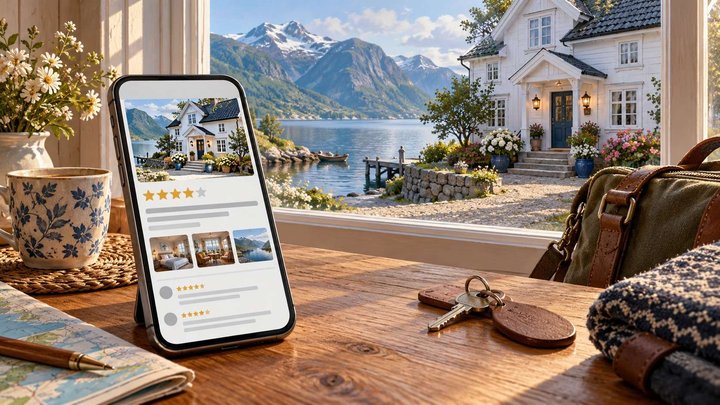
The guest picks where to stay before opening your website
Guests decide on the map before they open your website. Name, address, your own photos, parking, check-in and replies to reviews make the difference.
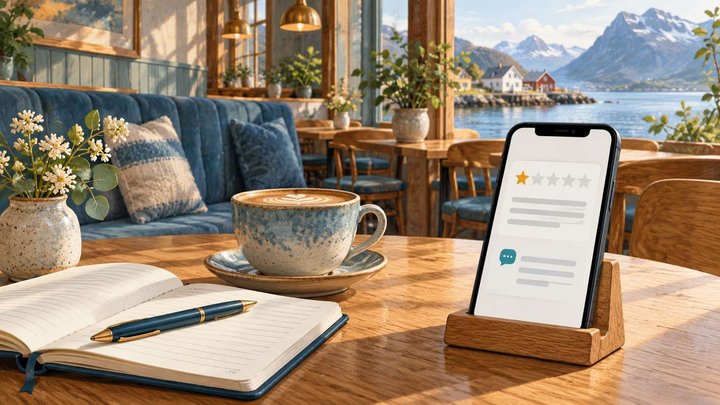
What do you do about a bad review? What can be removed, and what cannot
What to do about a bad Google review in Norway: what breaks the rules, how to report and reply, and how to ask for honest reviews.
Why don't customers find your business on the map? Five things we check first
Five things we check first when customers can’t find a business on the map: verification and ownership, name and address, category, photos and hours, reviews.
0 comments
Log in to leave a comment